Register your application with JIRA
Assuming you already have a JIRA account., the first step is to navigating to your JIRA Dashboard. There, select the Add-ons option from the Administration menu, on the top right corner of the screen.
In the Add-Ons section, select the Application Links option.
Type the URL of the application you want to integrate with JIRA and click the Create new link button.
Type your application's name and leave the remaining fields blank. Click the Continue button. The popup should close, after a few seconds, leaving you in the application list screen.
Edit the application link you just created.
Select the
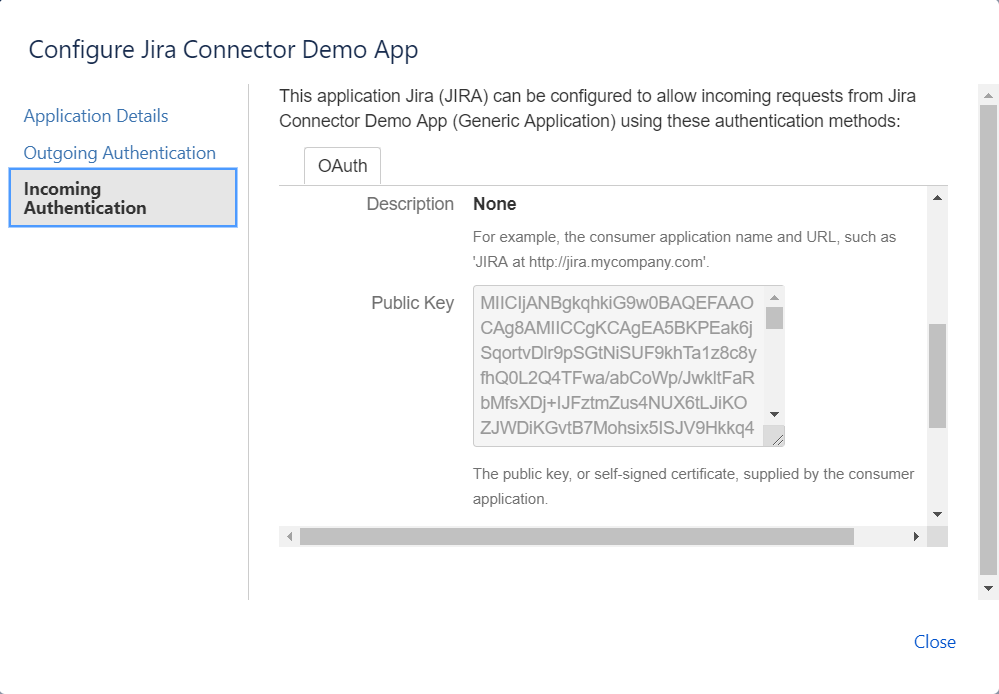
Incoming Authentication section, on the left side of the popup.
Fill in the
Consumer Key with a keyword of your choice. This is used as an identifier for your app. Later, you'll also need to fill in this value in the JIRA Connector's configuration screen.
Fill in the
Consumer Name and
Description with a text of your choosing.
The
Public Key will be used by JIRA to verify the identity of your app. The Outsystems JIRA Connector comes with a pre-generated certificate, so if you just want to test the connector, you may type in this value:
MIICIjANBgkqhkiG9w0BAQEFAAOCAg8AMIICCgKCAgEA5BKPEak6jSqortvDlr9pSGtNiSUF9khTa1z8c8yfhQ0L2Q4TFwa/abCoWp/JwkltFaRbMfsXDj+IJFztmZus4NUX6tLJiKOZJWDiKGvtB7Mohsix5ISJV9Hkkq4b047gcs+pHp97lJA+B3jI39VM1sGPwqJxNcsg1xAZYPog8WHYY2e31gb1KTfg/t65UZXq1Ga/K+rThX3zyNOMpM1aNbPfSg3Wsp79KV9cqcWdW5xBmSoVcc+5HLDdqL44TzH8zxMAUCwAAFzEf4v6px3BeAxSTQD3NGb51iGsphTZOB3YC95n8jhhjsdeb9w9qBrBrFglzwzRM3I3RXrPzbH9s5pV90C4HPprZPS3hBgMxg1Eupr2kQ50gUQjTrNtjN1uGb4Y+/F+aob8ZBUFRrWtTduyf0x2sTZJc2mvuy+c87apJTzw+I99SY2cBxclt2ArcF+a2RUU92W1QtQEntbpfau3u/6ORTJwwEJNUPP01LJ/eSOhzLnnVidR2rPE/J25PY8AyTB9Sipkb7tT9QAZ4QaQiMov+I+7VgVypmzXifVuw4NbSETJff3pBxxmBMFIx99sAJ7n+9LyWUSaxYTFhotmMl+dSevR5TU5r9aJ4ISOiTUoMRt1mhNaqVCfYnIRnNm5K/y+uy0AXwmxnmy0WyW8PMjZHosBpZMky9WU038CAwEAAQ==
For a production scenario you must generate a new certificate, extract its public key and paste it in this form.
Fill in the Consumer Callback URL with https://yourserver/JIRAConnector/Callback.aspx (if you are using the .NET stack) or https://yourserver/JIRAConnector/Callback.jsf (if you are using the Java stack). Don't forget to replace youserver with your server's actual address.
Fill in the Consumer Key, with the value you typed previously, when you registered the app on JIRA (on the previous step). If you choose to use your own certificate (as encoiraged on the previous step), you must upload on this page as well:
Click the Save button.
Configure the REST API URLs
Access your Service Center and navigate to the JIRAConnector eSpace's detail. Open the Integrations tab. There, change the Consumed REST APIs URLs to your JIRA environment's URLs.
The only part of the Effective URL that should need changing is the hostname. It should be something like https://yourjiraccountname.atlassian.net.
Effective Username and Effective Password should be left blank.
Configure the Site Properties
Still on the connector's eSpace detail screen, open the Site Properties tab. There, change JIRAAuthorizeURL to have its domain match your JIRA environment's (someting like yourjiraccountname.atlassian.net ):
Also: make sure the UseOAuth property is set to True.